
Connect Chronodesk to Claude once, and the admin that used to eat your afternoons becomes a sentence you type.
Every project manager, account lead and service desk coordinator knows the feeling. The real work is done, but the day isn’t over. The CRM still needs updating. The weekly status report still needs writing. Someone in the team is still waiting for a list of who is booked on what next week.
That admin layer is the silent tax on professional services work. It rarely appears on a timesheet, it never shows up on a client invoice, and it is the first thing to slip when delivery gets busy, which is exactly when it matters most.
Chronodesk MCP for Claude removes most of it. Connect Claude to your Chronodesk workspace, and you can ask for the reports, updates and lookups you used to click through screen by screen. In plain English. In seconds.
This guide covers what Chronodesk MCP is, the admin pain points it solves, the tasks it handles best, and how to set it up in about five minutes.
What is Chronodesk MCP?
Chronodesk is a professional services automation (PSA) platform that brings project management, service desk, CRM, timesheets and resource planning into one workspace.
MCP, the Model Context Protocol, is an open standard that lets AI assistants such as Claude connect securely to the tools where your work actually lives.
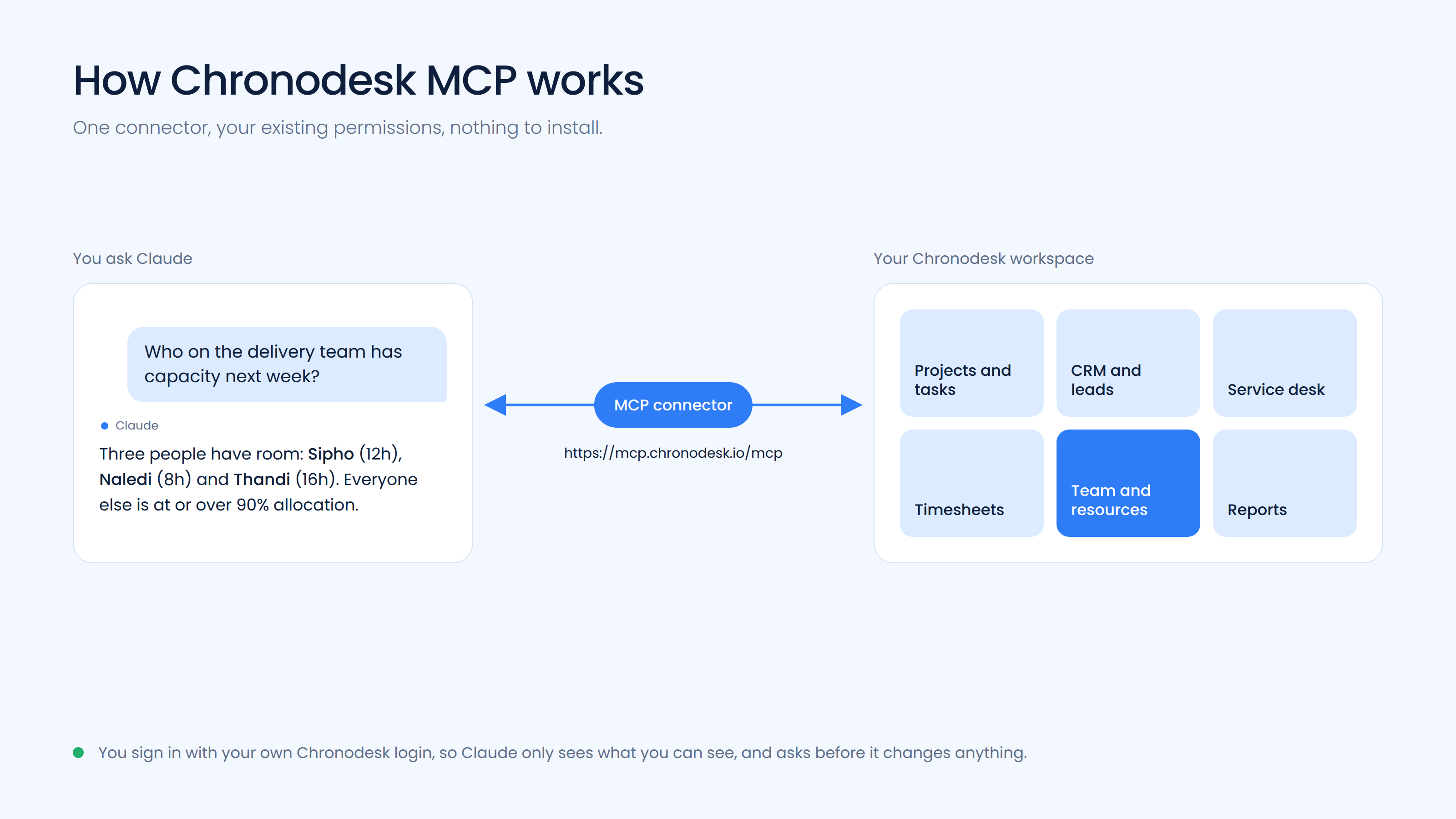
Put the two together and you get Chronodesk MCP: a hosted connector that gives Claude direct, permission-aware access to your Chronodesk data. Once connected, Claude can look up projects, tasks, tickets, CRM records, timesheets and team information, and take action on them, using the same access rights your Chronodesk login already has.
There is no middleware, no export-and-import cycle and nothing to install. You add one connector URL, sign in, and start asking.
The admin pain points Chronodesk MCP solves
CRM records that are always slightly out of date
Pipeline reviews go badly for one reason: the pipeline is not current. Calls happen, proposals go out, a client says “let’s revisit in Q3”, and none of it lands in the CRM until someone has a quiet hour, which is never.
With Chronodesk MCP, updating a lead is a sentence. “Log that I spoke to Acme this morning, they want the revised proposal by Friday, move them to Proposal Sent.” Claude makes the update. Your pipeline stays honest without anyone budgeting time for it.
Project status reports that swallow your Friday
The information for a status report already exists in Chronodesk: milestones, open tasks, hours logged, budget burn, risks. The problem is that assembling it into something a client or executive will read takes an hour of tab-hopping.
Ask Claude for a client-ready status report on a project and it pulls the live figures, structures them, and drafts the narrative. You edit, you send. The Friday afternoon report becomes a five-minute review.
“Who’s working on what?” questions that interrupt everyone
Capacity and allocation questions are small individually and enormous in aggregate. Who has bandwidth next week? Who is assigned to the cloud migration? How many active projects is Thandi on? Each one is a Slack message, a wait, and a context switch for two people.
Because Claude can query team, resource and task data directly, those questions get answered without involving a colleague at all.
Ticket queues that need a human to summarise them
Service desk leads spend the first part of every day reading tickets just to understand the state of the queue. Chronodesk MCP lets you ask for a summary: what is open, what is close to an SLA breach, what came in overnight, what needs escalating. You start the day with the picture instead of building it.
Timesheet gaps that surface at month-end
Missing time is invisible until invoicing, at which point it is expensive. Claude can check which tasks or days have no time logged and flag them while the work is still fresh enough to remember.
What you can ask Claude to do
Here are the kinds of requests Chronodesk MCP is built for. Treat them as starting points and adapt them to your own project and client names.
CRM and sales admin
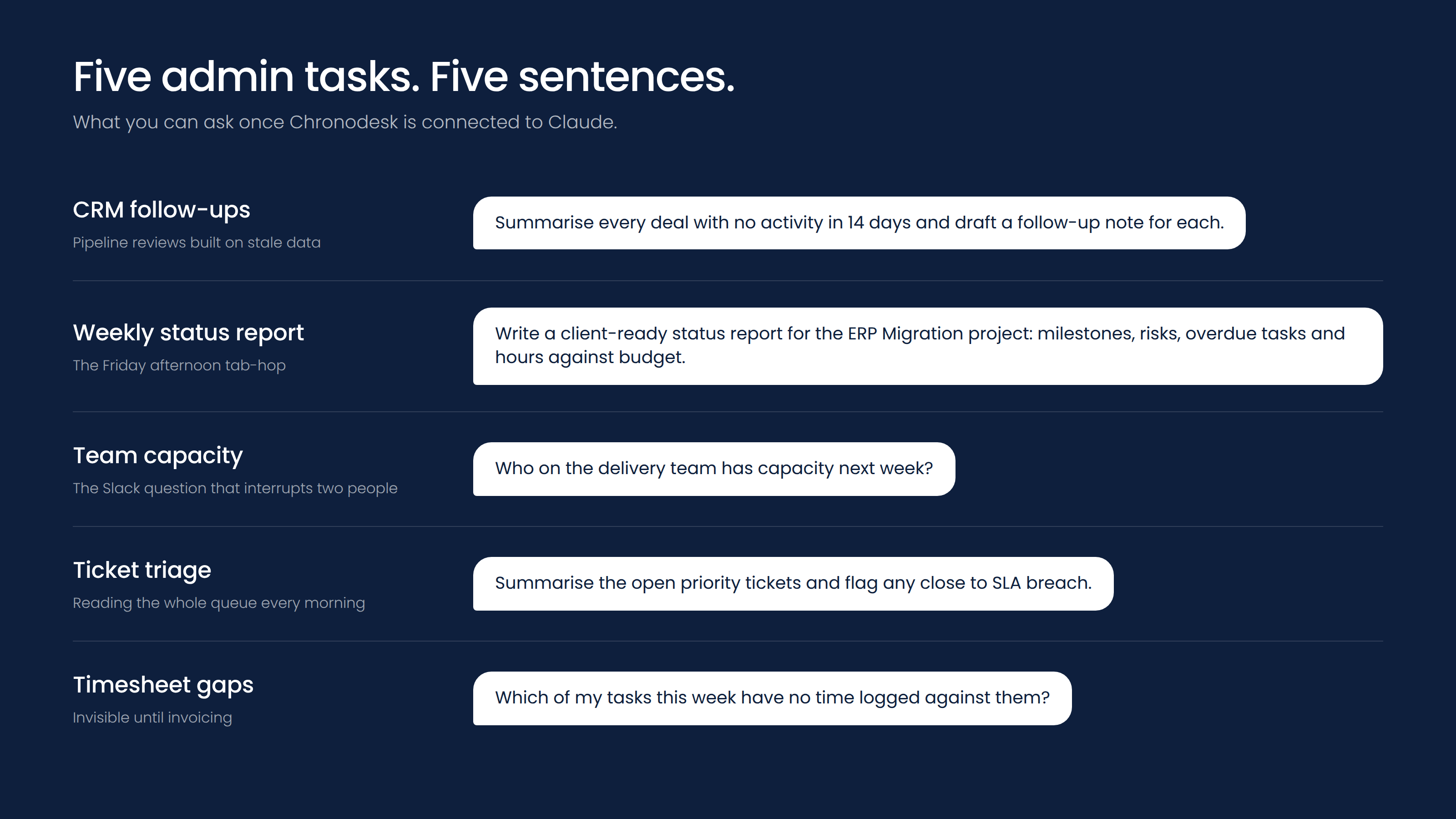
- “Summarise every deal in my pipeline with no activity in the last 14 days and draft a short follow-up note for each.”
- “Log a call with Acme Corp: they’ve asked for a revised proposal by Friday. Update the stage.”
- “Which leads came in this week, and who owns them?”
Project reporting
- “Write a client-ready weekly status report for the ERP Migration project: milestones, risks, overdue tasks and hours against budget.”
- “List all overdue tasks across my projects, grouped by assignee.”
- “Which of my projects look at risk this month based on schedule slippage and budget burn?”
Team and resource information
- “Who on the delivery team has capacity next week?”
- “Show me what Sipho has logged time against this month.”
- “Which team members are assigned to more than three active projects?”
Service desk
- “Summarise the open priority tickets and flag any close to SLA breach.”
- “Draft a client update for ticket #8492 based on the latest notes.”
Timesheets
- “Which of my tasks this week have no time logged against them?”
- “Total the hours logged on the Mobile App Revamp project for August.”
Because Claude is conversational, you can chain these. Ask for the overdue task list, then say “create a follow-up task for each one and assign it to the current owner”, and it does that too.
How to connect Chronodesk to Claude
The whole setup is a custom connector pointed at Chronodesk’s MCP endpoint. No technical knowledge is required.
What you need
- A Chronodesk account. If you don’t have one, start a 14-day free trial at chronodesk.io.
- A Claude account. Custom connectors are available on Claude’s Free, Pro, Max, Team and Enterprise plans. Free accounts are limited to one custom connector.
If you’re on an individual Claude plan (Free, Pro or Max)
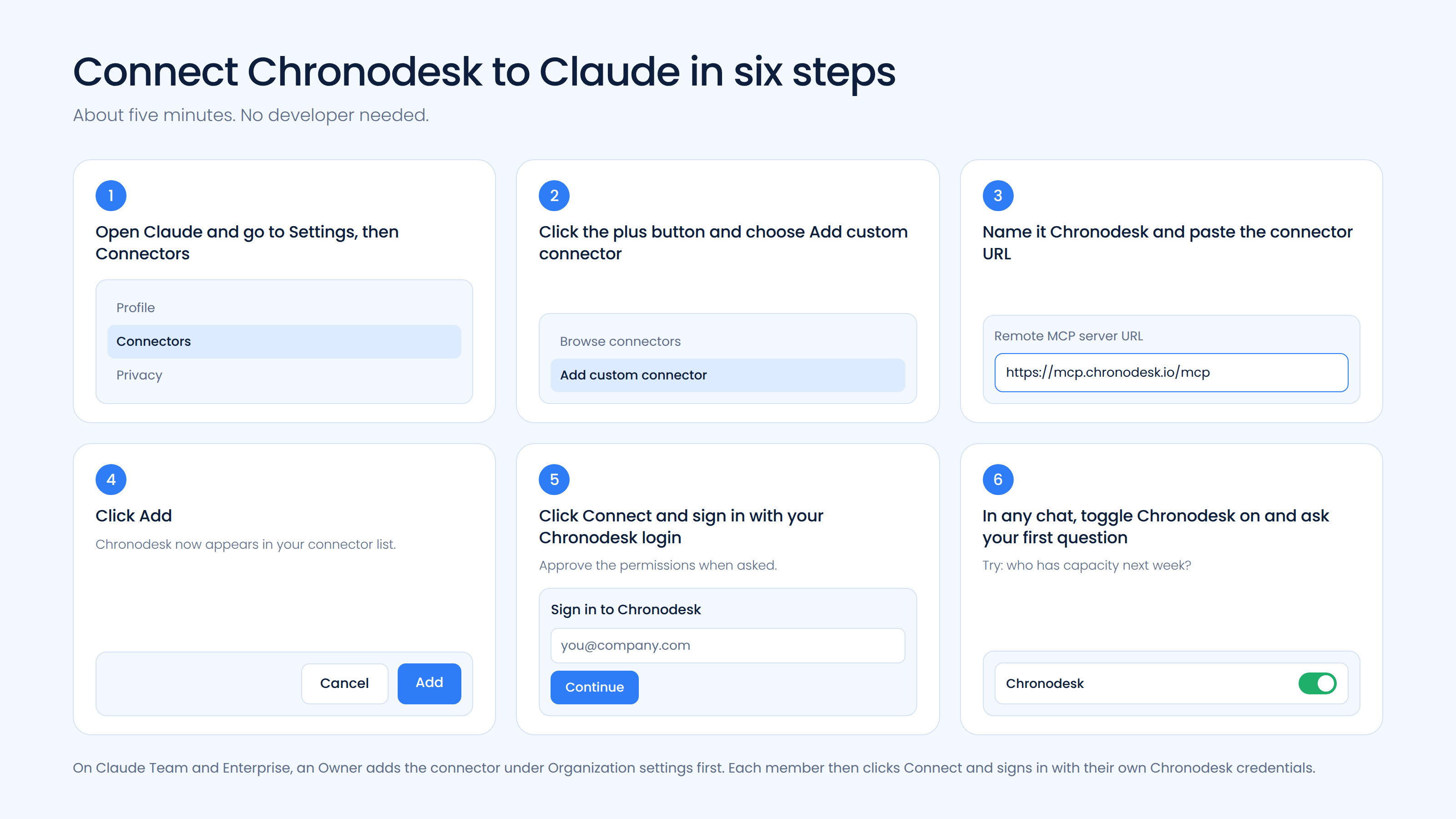
- Open Claude on the web or in the desktop app and go to Settings → Connectors (on claude.ai this is under Customize → Connectors).
- Click + and choose Add custom connector.
- Give it a name, such as Chronodesk, and paste this URL into the server field:
https://mcp.chronodesk.io/mcp - Click Add.
- Click Connect next to Chronodesk and follow the sign-in process. Sign in with your Chronodesk credentials and approve the requested permissions.
- In any chat, click the + button, open Connectors, and make sure Chronodesk is toggled on. Then ask your first question.
If your company uses Claude Team or Enterprise
- An Owner goes to Organization settings → Connectors, clicks Add, hovers over Custom, selects Web, pastes
https://mcp.chronodesk.io/mcpand clicks Add. - Each team member then opens Connectors, finds Chronodesk in the list, clicks Connect and signs in with their own Chronodesk login.
Each person connects with their own credentials, so Claude only ever sees what that person can see in Chronodesk.
Because connectors are linked to your Claude account rather than to a device, Chronodesk is available on claude.ai, the desktop app and the mobile apps as soon as you’ve connected it once.
Security and permissions
A few things worth knowing before you connect:
- Sign-in is via OAuth. Claude never sees your Chronodesk password. You authenticate directly with Chronodesk and grant permissions there.
- Access mirrors your Chronodesk role. If you can’t see a project or client in Chronodesk, Claude can’t either.
- Actions require approval. When Claude wants to create or change something, it asks first. Only choose “Allow always” for tools you’re comfortable running unsupervised.
- You can disconnect at any time from Claude’s Connectors settings.
- Chronodesk is POPIA and GDPR ready, with AES-256 encryption, so your data stays inside a compliant platform.
Tips for getting the best results
- Name things precisely. “The Acme project” works; “that project from last month” doesn’t.
- Ask for a format. “As a table”, “as three bullet points for a client email” and “as a Slack update” all change the output usefully.
- Start read-only. Ask for summaries and lookups first. Once you trust the results, let Claude make updates.
- Save standing instructions. If you use Claude Projects, store your status report template and house style there so every report comes out consistent.
- Chain the follow-through. Whenever Claude gives you a list, ask it to act on the list.
Frequently asked questions
Do I need to be a developer to set this up? No. Adding the connector is a copy-paste and a sign-in.
Does Chronodesk MCP work on the Claude mobile app? Yes. Once the connector is added to your Claude account it’s available on every Claude client, including iOS and Android.
Can Claude change data in Chronodesk, or only read it? Both, depending on the tools your Chronodesk workspace exposes and the permissions you approve. Every write action prompts you for approval before it runs.
Is it available on Claude’s free plan? Yes. Free users can add one custom connector, and Chronodesk can be that connector.
Our company uses Claude Team. Can I add it myself? On Team and Enterprise plans an Owner adds the connector for the organisation, then each member connects with their own Chronodesk login.
What happens to my Chronodesk data? Claude connects to Chronodesk through your authenticated session. Your data stays in Chronodesk; Claude reads and writes only what you ask it to, within your permissions.
Give the admin to Claude
The work that keeps projects on track, keeps clients informed and keeps the pipeline accurate has always been necessary. It has just never been worth the hours it takes.
Add the connector, sign in, and ask for the report you’d otherwise be building at 4:30 on a Friday.
Not on Chronodesk yet? Start a 14-day free trial. Setup is instant, and Claude can be connected before the first day of the trial is over.