
It is 08:40 on a Monday. A ticket arrives from the operations manager at a client firm: “The portal isn’t working again. This is urgent.” The analyst who picks it up has three other tickets open, so they send the reply that comes most easily: “Please provide more detail so we can investigate.” By Wednesday the client has sent two irritated messages and nobody has looked at a log.
Asking a client for more information on a support ticket is often necessary. It is also the easiest way to hand the work back to the person who asked for help. Here is when to ask, what to ask and how to keep ownership while you wait.
When should you ask a client for more information on a support ticket?
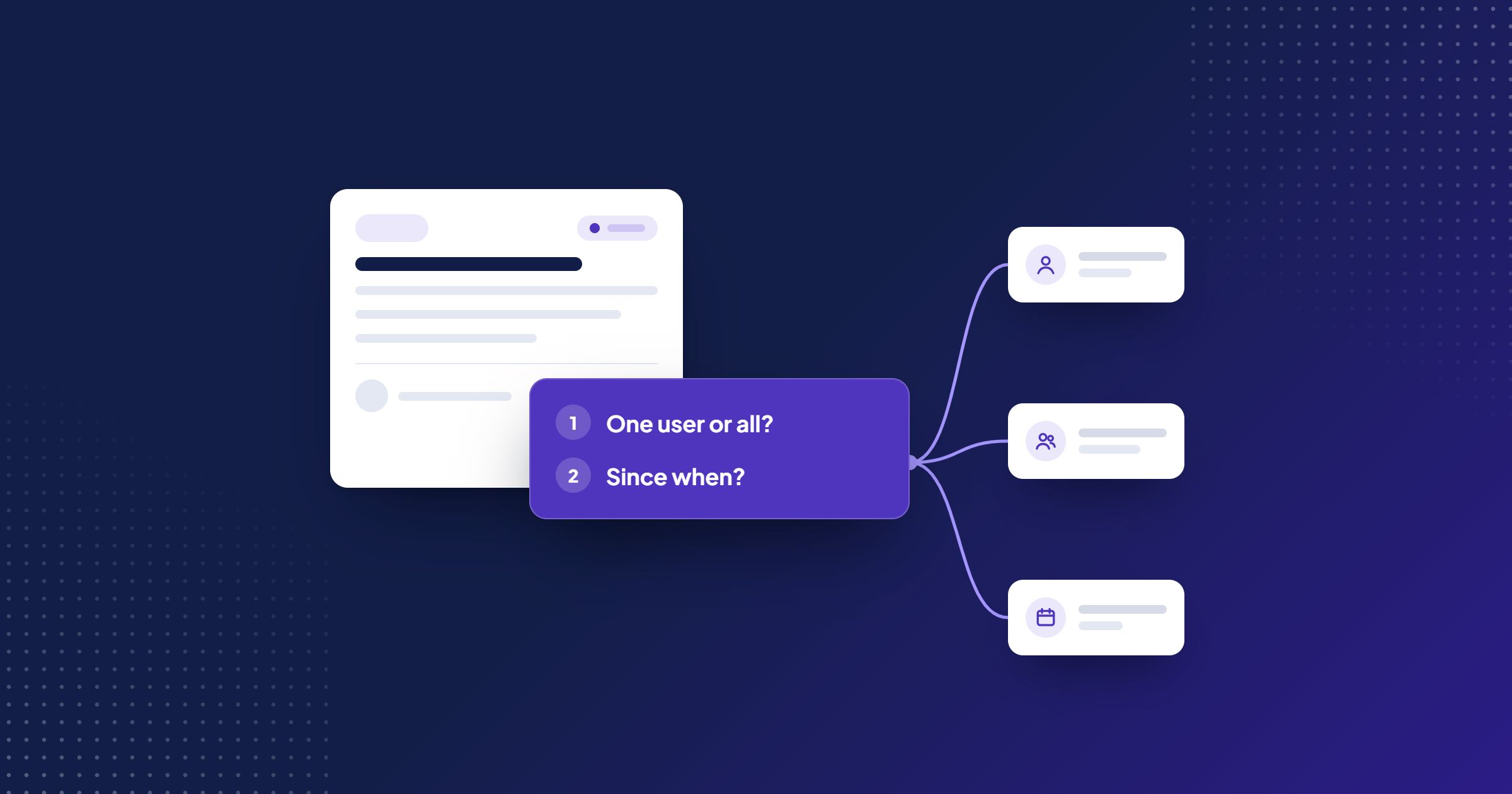
Ask only when the answer would change your diagnosis, the ticket’s priority, the access you need or your next action, and you cannot get it from what you already have. Check the ticket history, the client’s configuration, monitoring and related tickets first. If you can act without the answer, act and ask in parallel.
“Please provide more detail” fails that test because it names no decision. PeopleCert’s outline of the ITIL 4 service desk practice describes the service desk as “the central point of contact between the service provider and the users, facilitating effective communication”. A question that sends the client round in circles fails that job.
The four decisions a good question supports
Every question should serve at least one of these decisions. If it serves none, delete it.
| Decision | What you need to know | Example question |
|---|---|---|
| Diagnosis | Symptom, scope, timing, what changed | “What did you expect to happen, and what happened instead?” |
| Priority | Business impact, people affected, deadline, workaround | “Is anyone unable to complete work today because of this?” |
| Access | Permission to connect, test or change something | “May we connect to the affected laptop at 11:00 today?” |
| Next action | Routing, the change to make, whether to escalate | “Is this the new approval workflow or the older one?” |
On priority, ask about the consequence rather than asking the client to rate their own urgency. “Urgent” may mean the payroll run fails at 16:00 today, or simply that the client is frustrated.
How to ask a customer for more information: five steps
The ticket owner runs every step unless your team has a separate triage role.
1. Acknowledge the impact and check your records
Confirm promptly that you have the ticket and name its owner. Then check what you already know: previous tickets, recent changes, known issues, monitoring alerts and attachments already sent. Record it in an internal note and mark each fact as known, so it never appears in your questions.
2. Identify the minimum information for the next decision
Write down the next decision, then the smallest set of facts that would let you make it. You are unblocking the next hour of work, not collecting everything the investigation might need. If nothing is missing, start work and tell the client what you are doing.
3. Group the questions and explain why they matter
Send one message, not a drip of single questions. Number them and keep to three or four. Offer options when the client may not know the vocabulary: “Is it slow, showing an error, or not loading at all?” Add a short reason, such as “This tells us whether it affects one device or your whole office”, so the question does not read as a delaying tactic.
Ask for one safe example: a record number, a time, or a screenshot with names and figures hidden.
4. Switch to a call when writing is failing
Written questions struggle with visual problems, intermittent faults and clients who cannot name what they see. Switch after two written exchanges without progress, or sooner on a high-impact issue. Offer a specific 15-minute slot and write the findings onto the ticket afterwards.
5. Keep ownership while you wait
A ticket in Waiting still has an owner. Tell the client what you are doing meanwhile, when you will next contact them and what happens if they do not reply. Atlassian’s incident communication guidance puts the core rule plainly: “You should also always indicate when to expect the next update.” Cadence itself is a policy question, covered in how often a service desk should update a client.
Set a default closure rule too. For routine tickets, a workable default is two reminders on agreed dates, then a closure notice explaining how to reopen; for high-impact tickets, phone the client and their named alternate instead of closing. Whether the SLA clock pauses while you wait depends only on your agreed service rules.
Hypothetical example: timesheets will not submit
Hypothetical example: an IT services provider supports a 40-person engineering consultancy. At 09:05 SAST on a Thursday, a project engineer logs a ticket: “Timesheet won’t submit. Please fix, month end is tomorrow.”
Instead of “Please provide more detail”, the analyst checks the records. The engineer’s account is active, nothing was deployed to the timesheet system this week, and the consultancy’s month-end cut-off is 12:00 on Friday, which makes this high priority. The reply reads:
Thanks, Thandi. I have this ticket, and because your cut-off is 12:00 tomorrow we are treating it as high priority. Your account is active, so three quick questions will tell me where to look:
- When you press Submit, do you see an error, does the page freeze, or does nothing happen?
- Roughly what time did you last try?
- Could you send a screenshot of the week you are submitting, with any project names hidden if you prefer?
Meanwhile I am checking the submission logs for your account. I will update you by 11:00 SAST today either way.
The difficult exception. Between 09:15 and 09:35, three more engineers from the same firm report that the timesheet page freezes after they press Submit, with no error shown. Rather than wait for each to answer three questions, the analyst links those three tickets under one lead ticket, escalates to the application team and tells the three engineers: “Several people are affected, so we are investigating this as a shared issue. You do not need to send further detail unless you see a different error.” Atlassian makes a similar point: proactive communication means fewer “what’s the status of this” questions and fewer duplicate tickets.
When Thandi’s screenshot arrives at 09:50, it shows something different: a validation error on a line booked to a closed project code. That is a data correction, not the freeze. Her ticket stays separate, because merging it into the shared issue would hide a different cause.
The toolkit: decision table, checklist and reply templates
Ask-or-act decision table
| Situation | Ask the client? | What to do instead or as well |
|---|---|---|
| Answer is in ticket history, monitoring or contract | No | Use it and say so: “I can see you are on the Durban site” |
| Several users report the same symptom | Not before starting | Investigate the shared cause; ask only about differences |
| Symptom unclear and records do not explain it | Yes | Use the unclear-symptom template |
| You cannot reproduce the fault | Yes | Ask for the exact steps, time and one safe example |
| Impact or deadline unknown and would change priority | Yes | Ask about consequence, not self-rated urgency |
| You need access or approval | Yes | Request a specific time and scope of access |
| Two written exchanges have not helped | Stop writing | Switch to a call (step 4) |
Diagnostic question checklist
Mark what you already know before writing, and ask only for the gaps.
- Who is affected: one person, a team, a site or everyone?
- Which workflow or screen, and what were they trying to complete?
- Expected result compared with actual result
- Exact error or behaviour: error message, freeze, wrong data, nothing happens
- When it started and last happened, with time zone
- What changed recently: device, update, new staff member, new process
- One safe example: record number, reference or redacted screenshot
- Business consequence, deadline and any current workaround
- Access or approval needed to proceed
- Best contact, and an alternate if they are unavailable
Reply templates
Unclear symptom
Thanks; I own this ticket. So I can look in the right place, could you tell me: 1. What were you trying to do? 2. What did you expect to see, and what did you see instead? 3. Is it affecting only you, or others as well? I am already checking [what you are checking] and will update you by [time and time zone].
Missing reproduction steps
I cannot reproduce this on our side, so a detail in your steps probably matters. Could you send the steps you followed from the first screen you opened, and one example [record number or reference]? If easier, I can join a 15-minute screen share at [time].
Priority assessment
To set the right priority, it would help to know what this is stopping you from doing. Is anyone unable to complete work today, and does it affect a deadline? If you are using a workaround meanwhile, let me know so we do not disrupt it.
Stalled response
First reminder: I still need [one specific item] to continue. I will keep the ticket open and check in again on [date]. If it is easier to talk it through, reply with a time that suits you.
Final reminder: we cannot continue without [item], so I will close this ticket on [date] unless we hear from you. The history is kept; reply quoting [reference] and we will pick it up where we left off.
For high-impact tickets, replace the final reminder with a phone call to the client and their named alternate.
Limits and the common failure mode
The common failure is using the information request as a parking place: the ticket moves to Waiting and nobody owns the next step. A close relative is asking the same question twice because nobody recorded an answer given on a call. The cure for both is to write what you know onto the ticket and set a dated next action.
The method assumes someone can see ticket history and client context, which is hard when requests arrive in personal inboxes. For suspected security incidents, follow your incident procedure rather than an informal exchange of questions. And the better you understand the client’s business, the sharper your questions become.
Where Chronodesk fits
The method works in any ticketing tool (see the ticket triage basics in our documentation). The practical difficulty is that clients answer in whichever channel is closest. Chronodesk’s service desk brings email, WhatsApp and web-form requests into one ticket queue with clear ownership and history, and WhatsApp images, documents and voice notes can become part of the ticket. The screenshot a client sends to an analyst’s phone can then sit on the ticket rather than in one person’s chat history.
Your next step
This week, take the last ten tickets your team moved to Waiting. For each, note which of the four decisions the question served and whether the answer was already in your records. If fewer than half pass, adopt the checklist and templates above, then review a fresh sample in a month.
Frequently asked questions
Should the SLA clock pause while you wait for the client to reply?
Only if your agreed service rules say so, and only for the conditions they describe. If the contract has no pause provision, the clock keeps running and the wait should be visible in your reporting. Never send a generic information request simply to move a ticket into a paused status.
How many times should you follow up before closing a ticket that is waiting on the client?
There is no universal number, and your agreed service rules come first. The default in step 5 (two reminders, then a closure notice) suits routine requests; shorten the gaps between reminders when a deadline is close.
What information should a service desk never ask for on a ticket?
Never ask for passwords, one-time codes or authenticator approvals. Avoid full identity numbers, bank or card details and any personal data that the diagnosis does not need. When you ask for screenshots or files, ask the client to hide names, financial figures and personal details that are not relevant.
What if the client answers by phone or chat instead of on the ticket?
Accept the answer in whatever channel it arrives, then copy it onto the ticket straight away with the date, the channel and who gave it. Confirm it back in the ticket thread so the client sees what you recorded and can correct it. An answer that lives only in one analyst’s phone or memory will be asked for again.